Light Leaks Transitions
Description
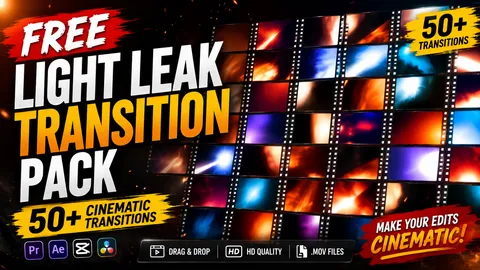
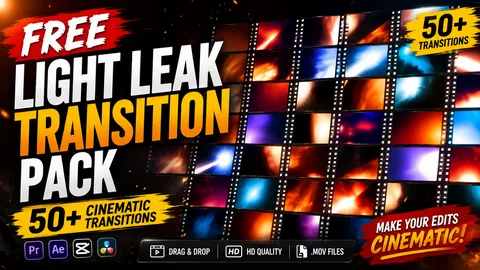
Download a premium collection of 50+ cinematic Light Leak transition clips for professional video editing. Perfect for YouTube videos, Instagram Reels, TikTok edits, travel films, music videos, wedding films, commercials, cinematic edits and social media content.
These light leaks are designed to add organic, warm, and beautiful cinematic touches to your videos. Whether you are transitioning between scenes, looking to add visual flair, or wanting a creative glow to elevate the mood, these 4K MOV files will immediately make your project look more professional and expensive.
Compatible with Premiere Pro, After Effects, DaVinci Resolve, CapCut, Filmora, and Final Cut Pro. The drag-and-drop workflow allows you to completely bypass manual effect creation. Just drop the clip on top of your timeline, change the blending mode, and you have an instant cinematic upgrade.
Pack Content Categories
- Warm Orange Leaks: Sun-drenched glows perfect for travel videos.
- Blue Light Leaks: Cool cinematic reflections for moody scenes.
- Red Cinematic Leaks: Intense, warm light bleeds.
- Purple Glow Leaks: Abstract and dreamlike light refractions.
- White Flash Leaks: Clean, bright transitional flashes.
- Lens Bloom Effects: Soft, organic light diffusions.
- Soft Exposure Leaks: Gentle adjustments in lighting.
- Vintage Film Burns: Classic retro analog film aesthetics.
- Cinematic Overlays: High-quality transitions for seamless cuts.
- Abstract Light Textures: Unique moving light patterns.
Key Features
- ✓ 50+ Professional Light Leak Clips
- ✓ High Quality MOV Format
- ✓ Drag & Drop Workflow
- ✓ Alpha-Friendly Overlay Style
- ✓ Perfect for Cinematic Edits
- ✓ Perfect for Reels & Shorts
- ✓ Travel Videos
- ✓ Wedding Films
- ✓ Commercial Projects
- ✓ Music Videos
- ✓ Color Grading Friendly
- ✓ Works on Windows & Mac
Perfect For Creators
- YouTubers
- Instagram Creators
- TikTok Editors
- Motion Designers
- Wedding Editors
- Commercial Editors
- Filmmakers
- Content Creators
- Premiere Pro Users
- After Effects Users
- DaVinci Resolve Users
- CapCut Editors
How to Use This Asset Pack
- Download: Download the pack from the link below.
- Import: Import the MOV files into your video editor.
- Placement: Place the light leak clip above your main footage on the timeline.
- Blend Mode: Set the Blend Mode (or Composite Mode) to "Screen" or "Add".
- Adjustments: Adjust opacity if needed, and scale to fit your sequence frame size.
- Export: Render and export your cinematic project!
🔗 Related Resources
Frequently Asked Questions
Gallery